Screenshots are from the mobile version, but the basic controls are the same on Windows and Mac.

F8 Effect Manual
Version 1.0.5
Version 1.0.5

Screenshots are from the mobile version, but the basic controls are the same on Windows and Mac.
When you open the app, your live camera feed is displayed with effects applied in real time — what you see is what you get before you shoot.
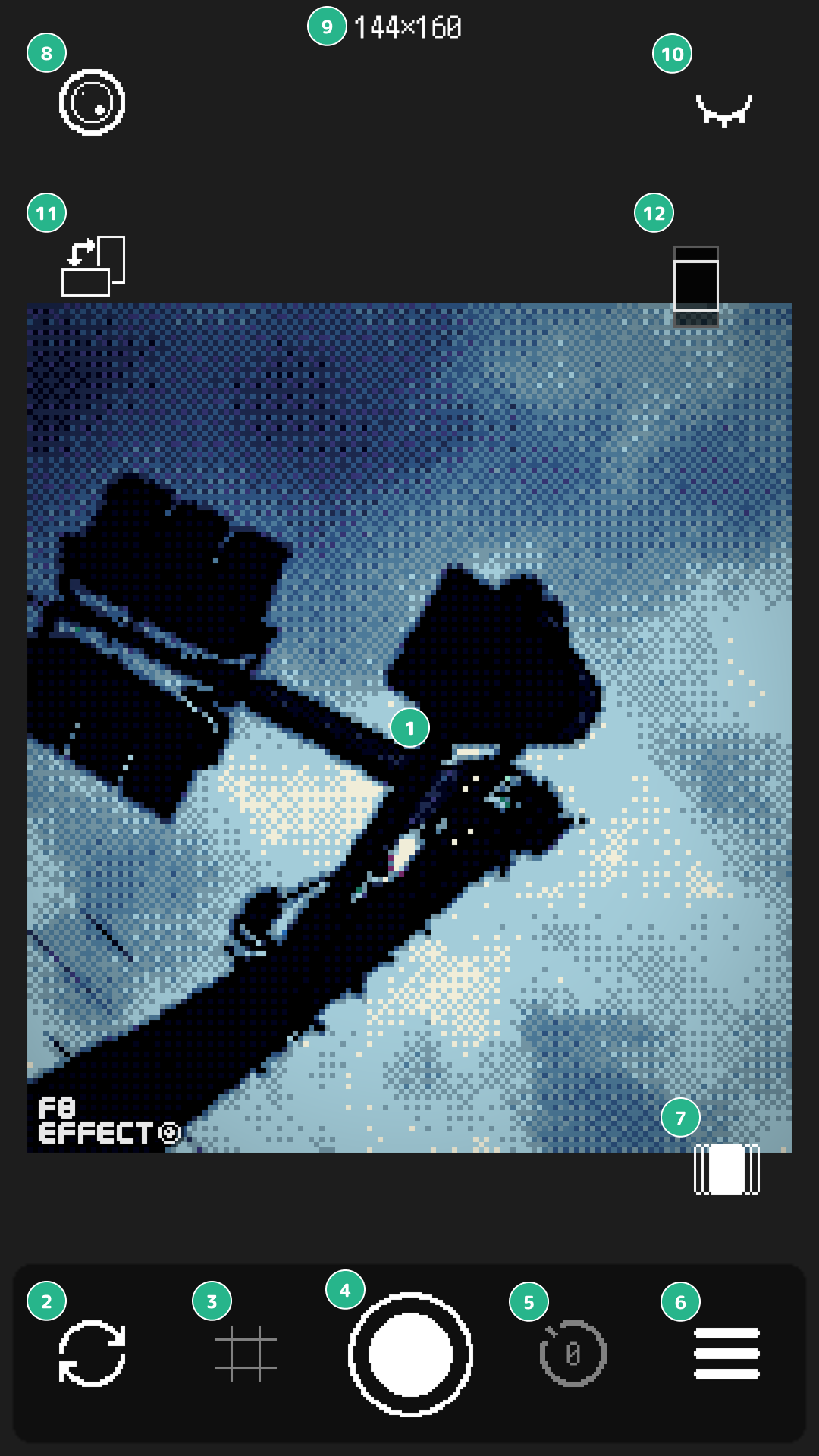
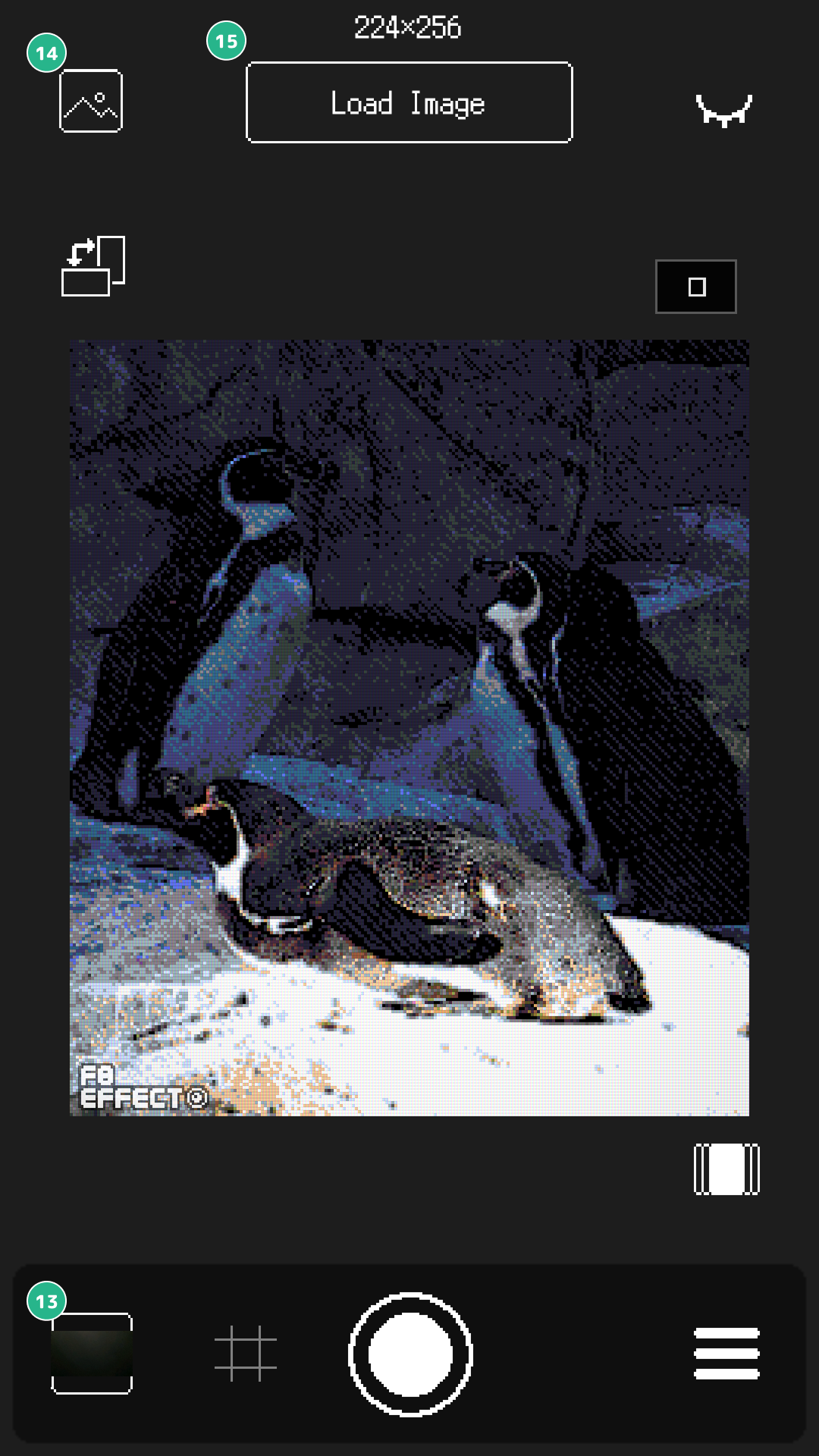
Tap the load image button (⑧) to pick a photo from your library and switch to edit mode. You can apply and adjust effects just like with the live camera.
Tap the shutter button (④) to take a photo. The image is automatically saved to your device's camera roll.
Select a delay (3, 5, or 10 seconds) from the timer button (⑤), then tap the shutter. The app counts down and captures automatically.
To capture without the F8 Effect logo on your photo, you can turn it off in the settings.
Tap the menu button (⑥) to open the effect settings panel.
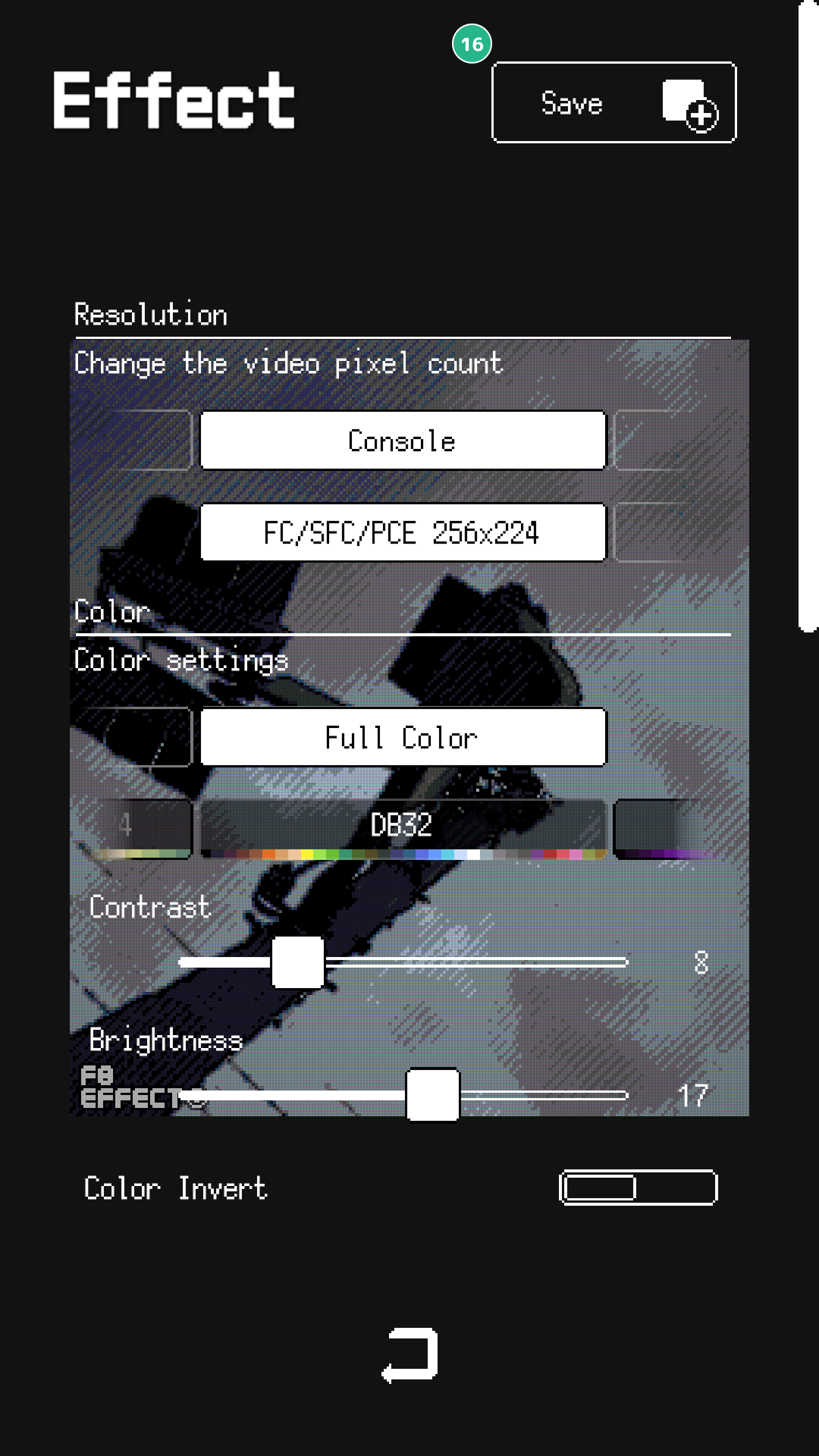
Select a pixel resolution preset. Lower values produce a coarser, more retro pixel look. You can also swap the width and height orientation.
Open the preset menu directly with the preset menu button (⑦). Presets let you save and recall combinations of color palette, resolution, and effect settings in one tap.
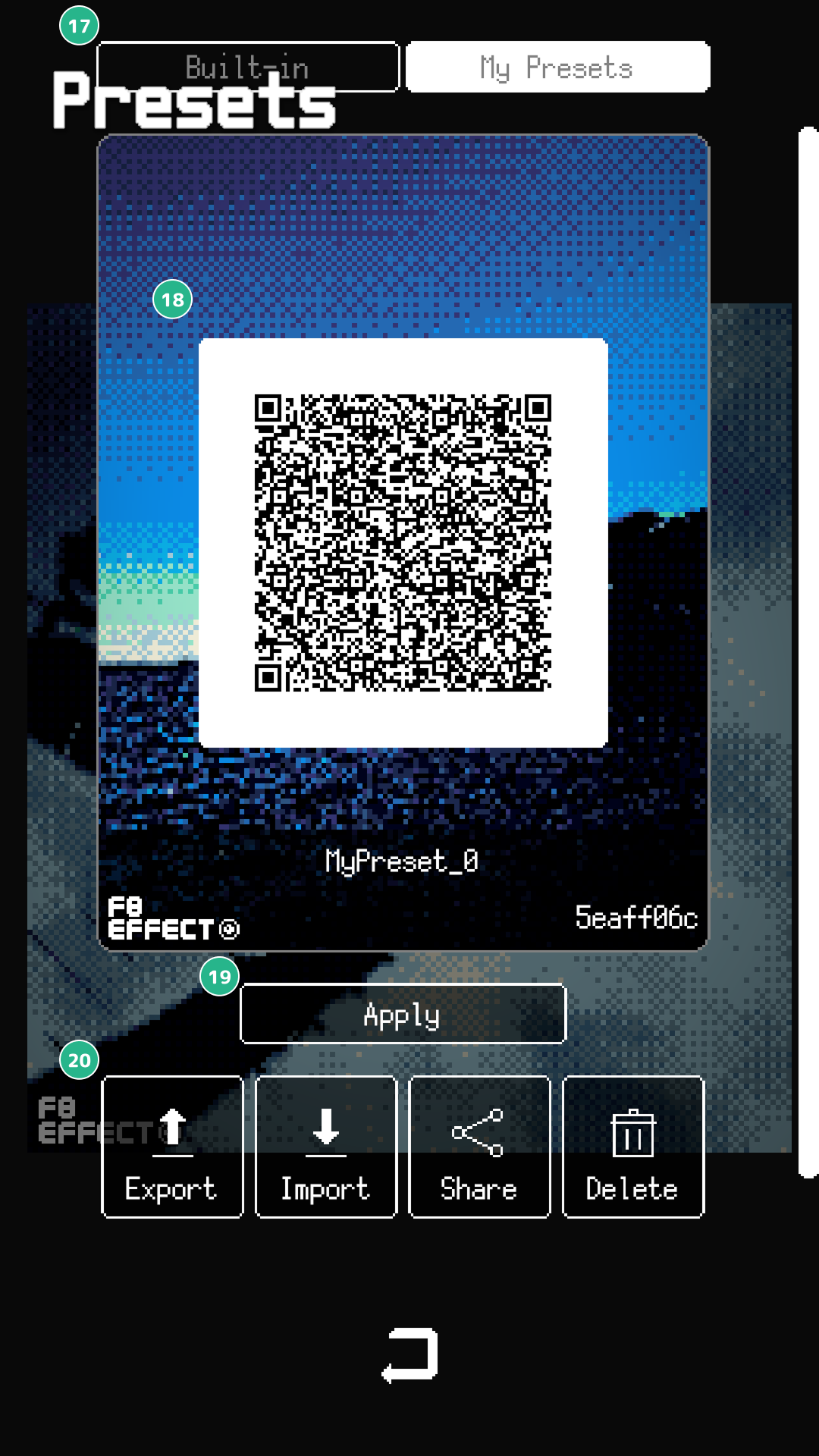
Tap a preset card to cycle through its cover photos. Pick your favorite before sharing or exporting.
More cover photo options coming soon.
Use the save button (⑯) in the effect settings panel to register your current settings as a My Preset. Saved presets are managed in the My Presets tab. You can save up to 20 presets.
Export any My Preset as a QR code to share your settings with other devices or users. Tap the share icon in the action buttons (⑳) to display a QR code — the recipient scans it to add the preset directly to their My Presets.
To import a QR code, use the Import button in the action buttons (⑳) or scan it with the device's built-in camera app.